Betterstatus
With the BetterStatus module, you can customize your Discord bot’s status more effectively change it every few seconds or add parameters to it. It’s the same bot status as in the Built-in Configuration, but with this module, you have more advanced customization options.
Enable Interval?

type: Boolean (AKA True/False)
required: false
recommended: true
Here, you have to decide whether the bot status should change every few seconds or not. If you enable this option, the bot status will change every x (you can change that later on) seconds. If you disable this option, the bot status will be static and will not change.
Interval-Statuses
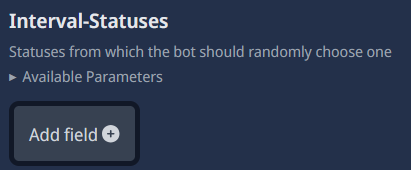
type: Add field
required: false (true if you enabled the “Enable Interval?” option)
Here, you have to create texts that will be used as the bot status when the interval is enabled. You can add multiple statuses here, and the bot will cycle through them every x seconds. You can use Parameters here. Explanation:
%onlineMemberCount% - Count of online members on your guild (will not work if presence intent not enabled)
%memberCount% - Count of members on your guild
%randomMemberTag% - Tag of one random member on your guild
%randomOnlineMemberTag% - Tag of one random member who is online on your guild
%channelCount% - Count of channels on your guild
%roleCount% - Count of roles on your guild
Activity-Type

type: Options
required: true
Here, you have to select the activity type for the bot’s status. You can choose between CUSTOM, PLAYING, WATCHING, STREAMING, COMPETING, and LISTENING. Please note that you need to provide your Twitch channel URL for the status to work properly — but we’ll cover that later on this page (see the “Streaming Link” section).
Bot-Status

type: Options
required: true
Here, you have to select the bot status. You can choose between ONLINE, IDLE and DND. this will be displayed in the bot’s profile. https://support.discord.com/hc/en-us/articles/227779547-Changing-Online-Status
Status-Interval

type: Spinner (AKA Number Input)
required: false (true if you enabled the “Enable Interval?” option)
Here, you have to give a number in seconds. This number represents how often the bot status should change. For example, if you enter 30 here, the bot status will change every 30 seconds. Please note that the minimum value is 10 seconds. this is because Discord has a rate limit for changing the bot status, and changing it too often could lead to issues.
Change Status on user join?

type: Boolean (AKA True/False)
required: false
recommended: true
Here, you have to decide whether the bot status should change when a user joins the server or not. If you enable this option, the bot status will change to a specific status when a user joins the server. If you disable this option, the bot status will not change on user join.
User-join-Status

type: String
required: true
Here, you have to type a message that will be displayed as the bot status when a user joins the server. You can use Parameters here. Explanation:
%tag% - Tag of the new user
%username% - Username of the new user
%MemberCount% - New member count of your guild
Streaming Link

type: String
required: false (true if you selected STREAMING as the Activity-Type)
Here, you have to provide your Twitch channel URL if you selected STREAMING as the Activity-Type. This is necessary for the bot status to work properly. If you didn’t select STREAMING, you can leave this field empty.